
Key Takeaways
- Board Meeting Prep pulls what changed at a portfolio company since the last board meeting from Visible and writes a one to two page brief.
- Every question in the brief is tied to a specific number, note, or commitment.
- When the founder's deck is available, Claude checks its numbers against Visible and turns each difference into a question.
- The skill is read-only in Visible unless you choose to save the brief as a note.
Before a board meeting, most investors do the same digging. They pull last quarter's numbers, find the plan, reread notes from the last meeting, and try to remember what the founder promised and what they offered to help with. Then they skim the board deck the night before and hope the numbers line up.
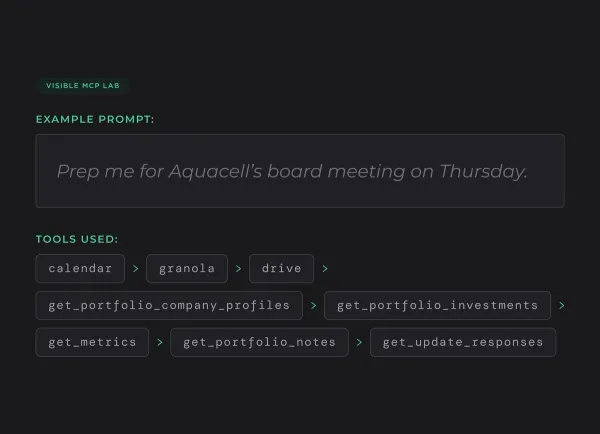
The Board Meeting Prep skill does that digging in Claude. Name a portfolio company and it pulls everything that changed since the last board meeting from Visible, checks the founder's deck against Visible's numbers when the deck is available, and writes a one to two page brief built around the three questions most worth asking.
What the Skill Does
The brief is written for a partner reading it ten minutes before the meeting. That reader needs to know what changed, what's off track, what was promised last time, and what to ask. It is not a data dump.
Every question is tied to a specific number, note, or commitment. A question like "How's hiring going?" doesn't make the cut. "You planned 12 engineering hires by Q3 and made five; what's blocking it?" does.
Everything the skill reads from Visible is read-only. After the brief, Claude offers to save it as a note on the company in Visible, and only does so if you say yes.
How It Works
1. Find the Starting Point
What changed only means something against a date. Claude looks for the last board meeting in your calendar, then in meeting notes from Granola or a similar tool, then in Visible notes, and then asks you. If none of those work, it uses the last completed quarter and says so in the brief.
2. Gather the Data
From Visible, Claude pulls your fund's position (cost, fair value, ownership, and the latest round), at least five quarters of metrics alongside the company's plan where Visible has it, and the notes and update responses since the last meeting. If the founder's board deck is in Google Drive, Gmail, or uploaded to the chat, Claude reads that too.
3. Keep Only What's Notable
A metric that's on plan usually doesn't get a line. These do:
- A key metric 10% or more off plan, or moving the wrong direction for two periods in a row.
- Runway under 12 months, which puts a fundraise or cost plan on the agenda. Under six months is urgent.
- Commitments from the last meeting, on either side, with no evidence they happened.
- Numbers in the founder's deck that don't match Visible for the same period. Each one becomes a question, not an accusation.
- A company that hasn't reported recently. Asking for current numbers moves to the top of the list.
4. Write the Brief
The brief opens with a one or two sentence headline, then covers your position, a short metrics table since the last meeting, runway, commitments from both sides, any deck differences, and the questions. Every number comes with a period and a comparison, like "$8.3M ARR (Q3 2026), 10% below plan of $9.1M."
An Example
Here's what the top of a brief could look like for Kramer Ventures heading into an Aquacell board meeting. This is an example with made-up numbers.
Aquacell board meeting prep. Internal: prepared for Kramer Ventures only.
Headline: Aquacell is growing but landed below plan for the second quarter in a row, and runway is down to 11 months. Fundraise timing is the main issue for this meeting.
Priority question 1: ARR landed at $8.3M against a $9.1M plan. Which part of the gap is pipeline that slipped into Q4, and which part is deals you don't expect to close? Why: ARR is 10% below plan for Q3, the second quarter in a row below plan.
When to Use It
Run it a day or two before any board meeting, board observer seat, or quarterly business review with a portfolio company. Founders usually share the deck a few days ahead, so that's when the deck check has something to compare.
For a quick question, like "What should I ask Aquacell tomorrow?", Claude answers right in the chat. After the meeting, Claude can turn your notes or a transcript into a Visible note with action items, so next quarter's prep has commitments to check.
Get Started
- Download the skill file from the help article below.
- Upload it in Claude under Settings > Capabilities > Skills.
- Connect the Visible for Investors connector. Google Calendar, Granola, Google Drive, and Gmail are optional and make the brief sharper.
- Ask Claude to prep you for your next board meeting.
Frequently Asked Questions
What do I need to set up?
Upload the skill file in Claude and connect the Visible for Investors connector. That's the only requirement. Google Calendar, Granola, Google Drive, and Gmail are optional, and Claude skips any that aren't connected. There's no first-run setup.
Does the skill change anything in Visible?
Only if you ask it to. Everything it reads from Visible is read-only. After the brief, Claude offers to save it as a portfolio note on the company, and after the meeting it can turn your notes into a Visible note with action items. Both only happen when you say yes.
Can I share the brief with the founder?
No. The brief can include candid internal views, so it's marked internal for your fund. Keep it out of any document the founder can see.
What if the founder hasn't sent the board deck yet?
Claude doesn't wait on it. The brief says no deck was found, suggests asking the founder for it, and covers everything else from Visible.